Track work your way. Give every team its own screen.
Set the stages your jobs move through and the details each team needs to see. Give different teams their own screens, so everyone knows what needs doing and how the work is going.
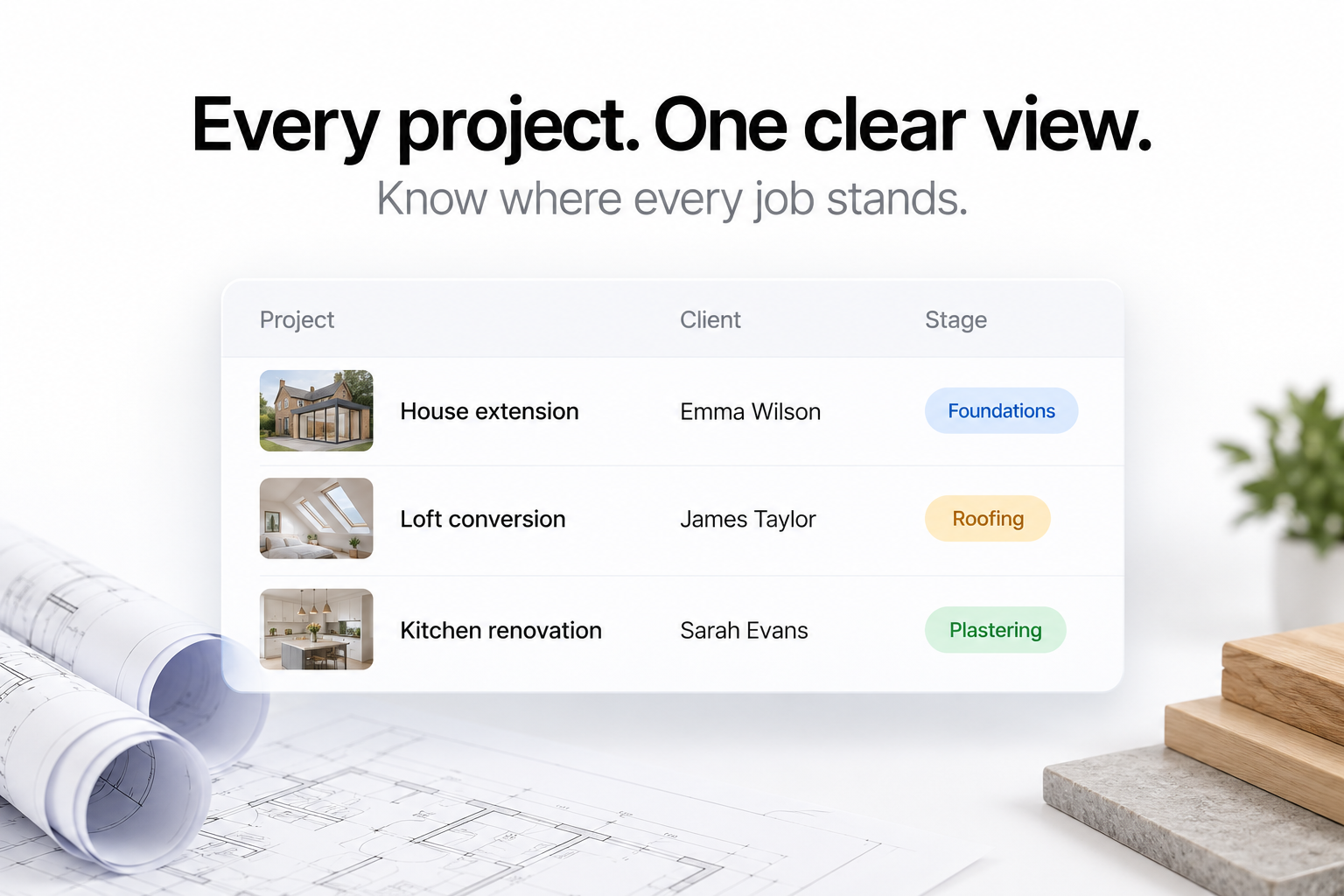
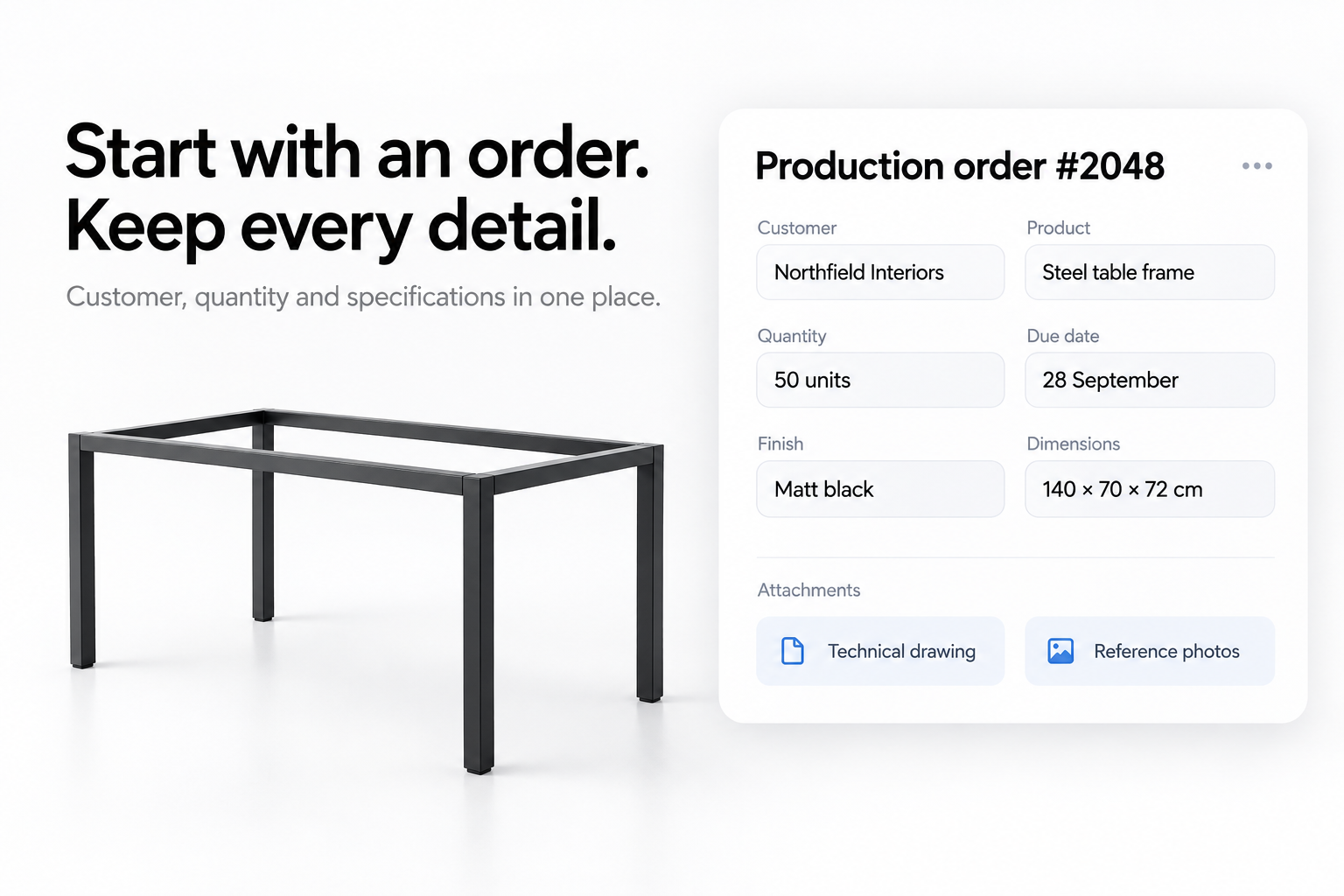
Construction projects with their site and how far along they are.
How it works
Follow one job from quote to finish.
Here is how a single job moves from the first quote, through your teams, to the finished work.
- 01
Start with a quote.
Put together a quote with the work, quantities and prices, ready to share with your customer.
Add a line for each part of the work, such as groundworks, blockwork and the roof, with a quantity and price. Download it as a PDF to send to your customer.
Quote Q-218DraftTwo-storey extension · 14 Elm Road
Quote Q-218
- Groundworks and drainage1 × £6,800.00£6,800.00
- Blockwork walls (m²)86 × £52.00£4,472.00
- Pitched roof, tiled1 × £9,400.00£9,400.00
- Windows and doors7 × £640.00£4,480.00
PDF to sendSubtotal£25,152.00 - 02
Turn accepted quotes into jobs.
Once the customer accepts, turn the quote into a job without entering the same details again.
The job keeps the customer and the accepted work from the quote. Add the site address and start date, and attach drawings, photos and other documents.
Job #2207Quote Q-218AcceptedJob #2207 created- Customer
- Hannah Patel
- Site address
- 14 Elm Road, Leeds
- Work
- Two-storey rear extension
- Start date
- 3 November
- From the quote
- 4 accepted lines
- Files
- drawings.pdf · 3 site photos
- 03
Move it through your stages.
You decide the stages.
Start with the usual stages for construction, such as groundworks, foundations, structure, roofing and finishing. Rename them, add your own and put them in the order you build. Each project shows which stages are waiting, in progress and done.
Project #2207 · Two-storey extension- GroundworksDone
- FoundationsDone
- StructureCurrent
- RoofingWaiting
- FinishingWaiting
- 04
Give every team its own screen.
Each team sees only the work at its stage.
The office sees new jobs and start dates. The groundworks crew sees sites ready to start. Roofers see roofs ready to go on. Finishers see what is ready for fit-out. These are views of the same jobs, not copies. When one team moves a job on, it shows up on the next team’s screen.
OfficeNew jobs & start datesGroundworksSites ready to startOne live jobSame data everywhereRoofingRoofs ready to go onFinishingFit-out & snagging - 05
See how every project is going.
Progress shows on every project.
Each project shows its current stage and how much of the work is done. The office can check any site without ringing round.
Projects- 14 Elm Road · ExtensionStructure48%
- Mill Lane · Plot 4Roofing66%
- Harbour View · New buildGroundworks18%
Team screens
Every Team. Every Stage. Live Progress.
Each screen shows the jobs at one team’s stage, with the details and buttons that team needs. Every screen works from the same jobs, so nothing is copied or typed in twice.
- #1042 Kitchen unitsOakwood Homes · due 22 MarIn production
- #1041 Office fit-outBrightSpaces · due 28 MarNew
- #1040 Retail displayUrban Store · due 19 MarFinishing
- #1043 Reception deskQty 1 · due 25 MarTo do
- #1042 Kitchen unitsQty 14 · due 22 MarIn progress
- #1039 ShelvingQty 8 · due 18 MarCompleted
- #1042 Kitchen doorsArrived todaySanding
- #1040 Retail displayCoat 2 of 2Painting
- #1038 Shelving unitsReady soonWaxing
- #1038 Shelving unitsHomeStylePrint label
- #1036 Counter topRiversideMark packed
- #1035 WardrobesParkviewDispatch
- Order created
- Production
- Finishing
- Packing
- Dispatched
When production marks a job done, it moves to the finishing screen. Screens refresh by themselves, so nobody needs to reload.
Let customers check their order.
Each customer gets a simple order page. It shows where their order is, without showing how your business runs inside.
- Fewer “where's my order?” callsCustomers can look up their order instead of ringing you.
- Linked to your stagesLink a stage to a customer milestone. When a team moves the job to that stage, the page moves on too.
- You stay in controlYou can also set the milestone by hand. Until then, the page shows an estimate from the order dates.
Your order #1042
Kitchen units · Oakwood Homes
- Order confirmed
- In production
- Finishing
- Packing
- Dispatched
Current stage
Finishing
Your order is currently being finished. We'll update you when it's ready for packing.
Customers see milestones only. Internal notes, staff and costs stay private.
Customisation
Set it up the way you work.
You can change your stages and team screens yourself. Your trade’s usual job details come ready to use. If you need extra job fields, we set them up with you.
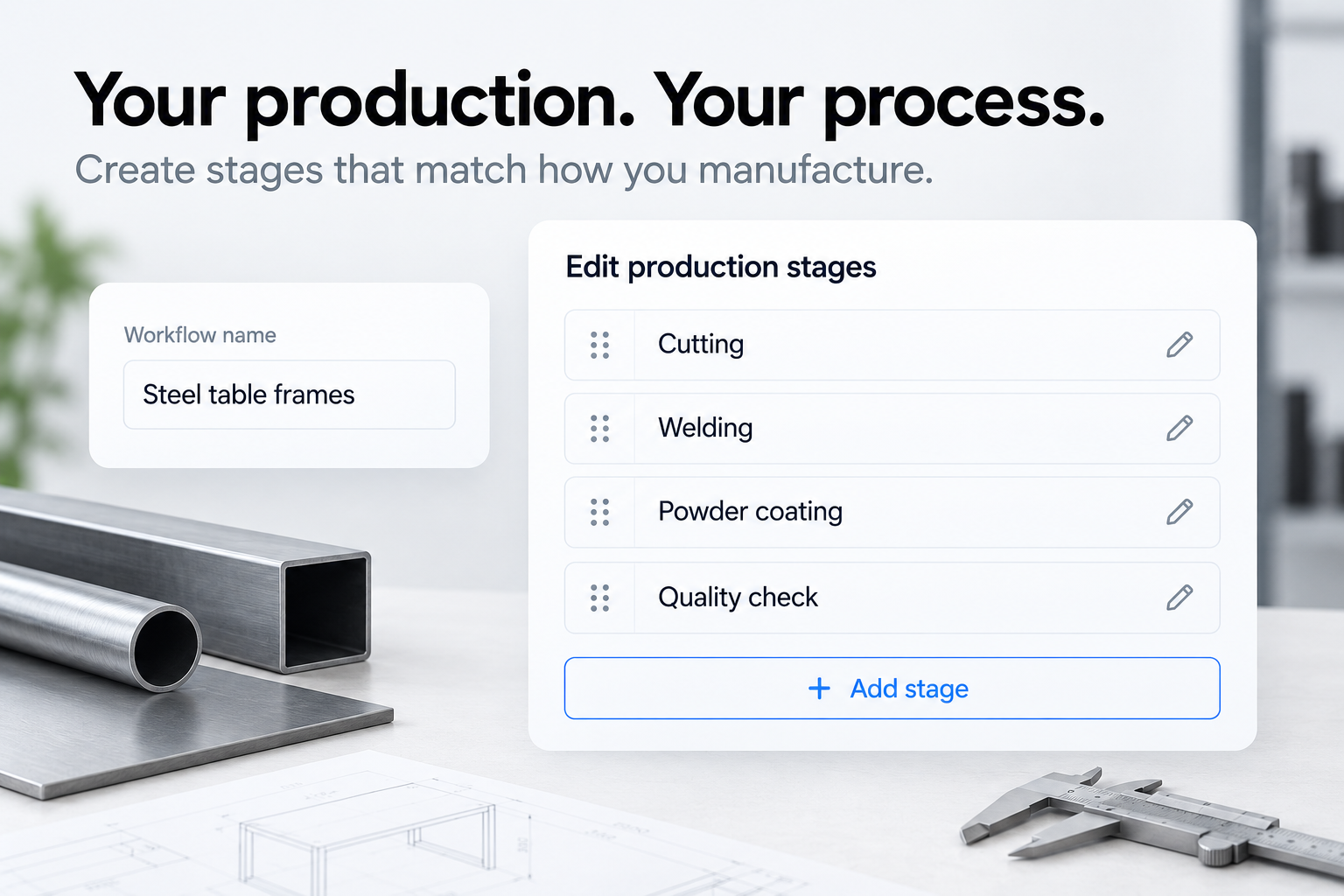
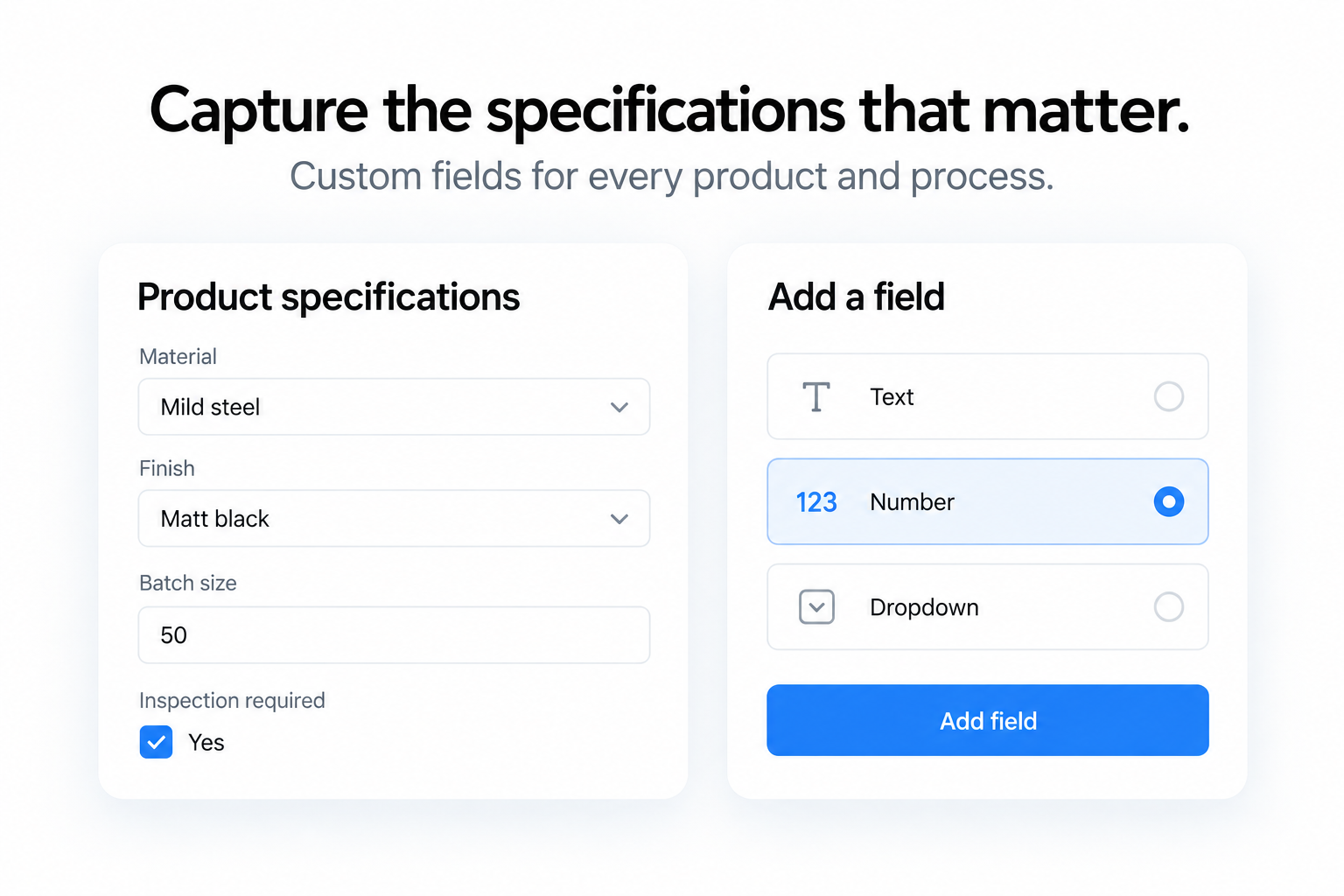
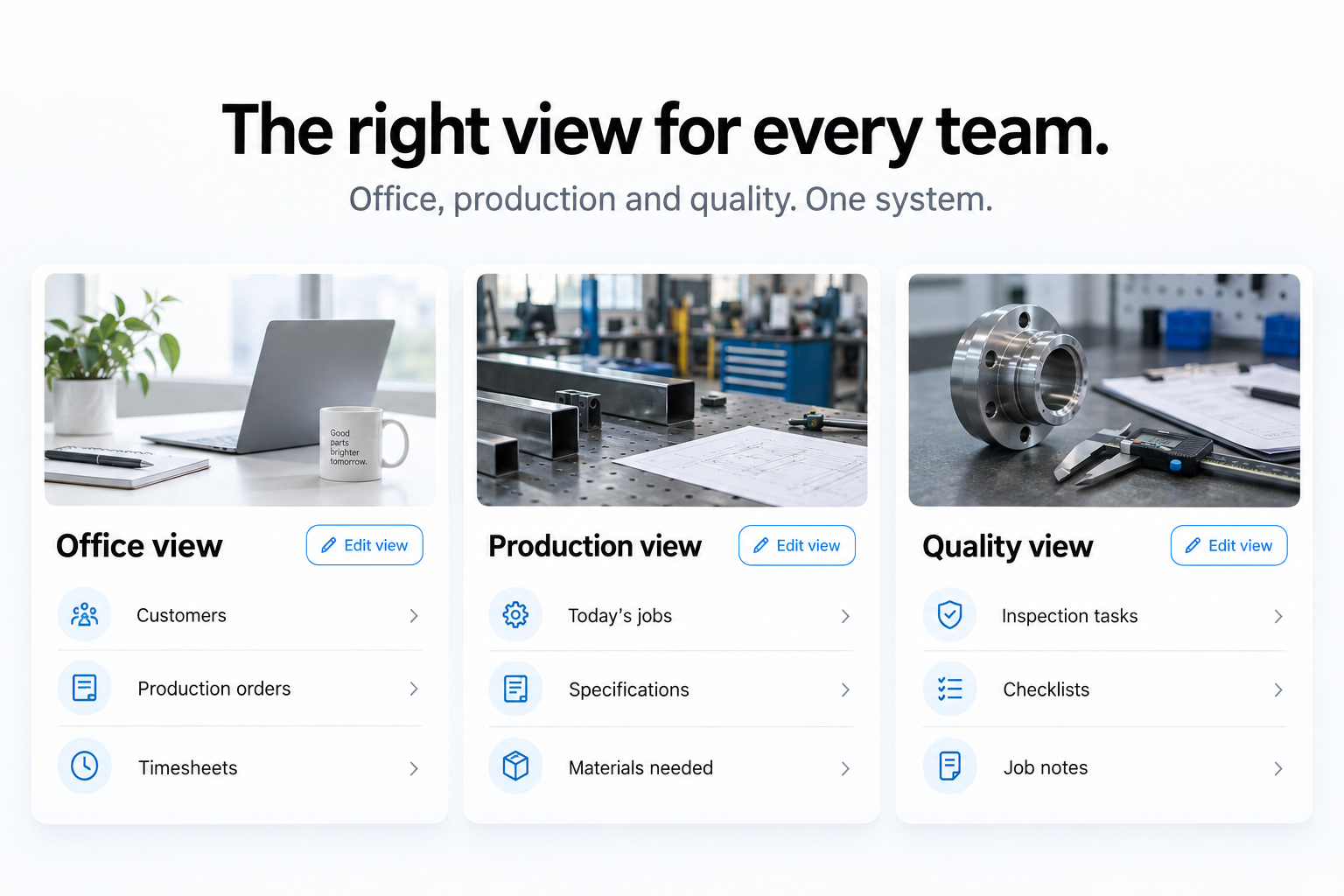
Add your own stages, give them a colour and put them in your order. Change one job or your usual workflow.
Materials
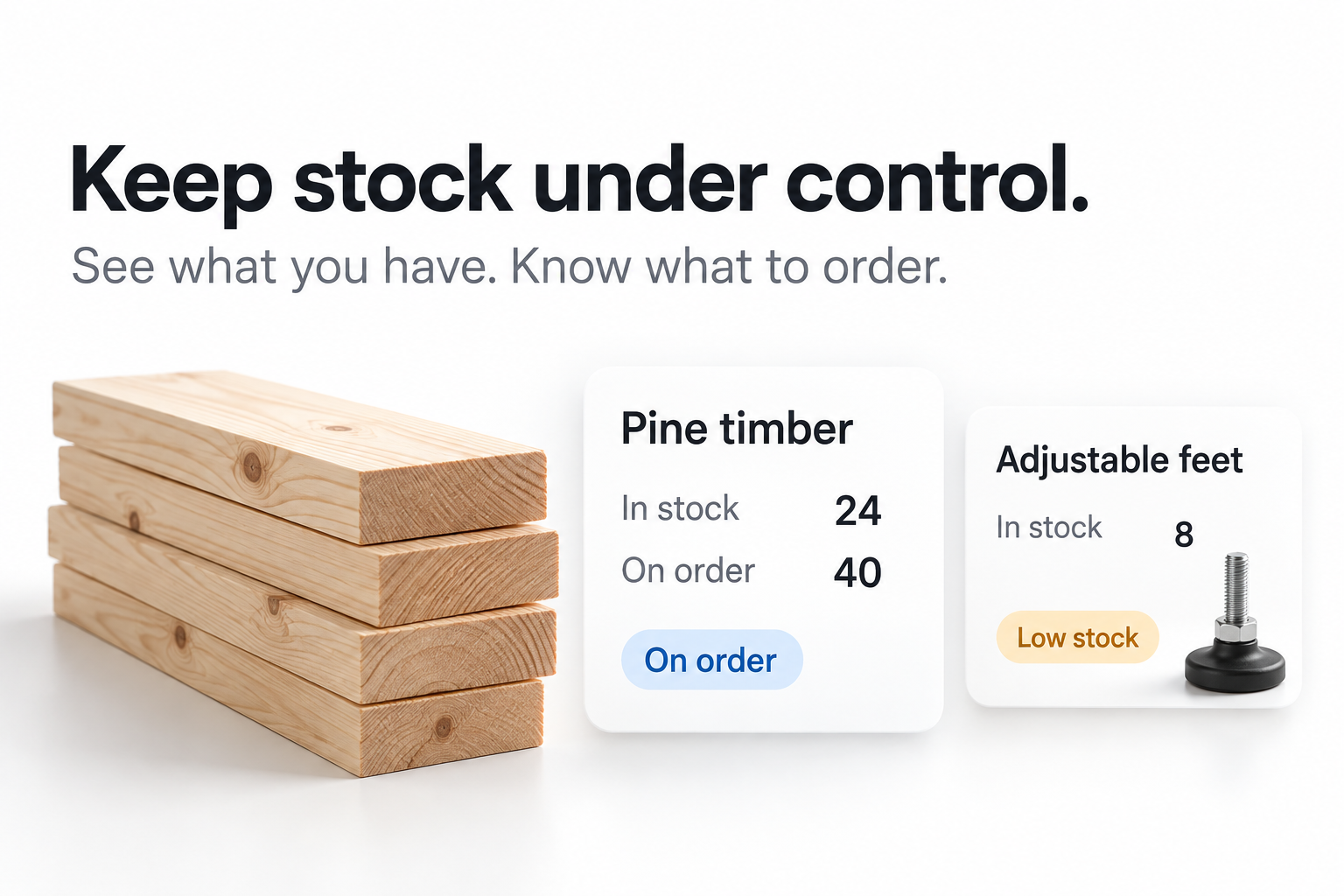
Keep track of stock.
A stock list that sits alongside your jobs. See what you hold, what’s on order and what’s running low. Set materials aside for a job so they aren’t used elsewhere.
Hours and pay
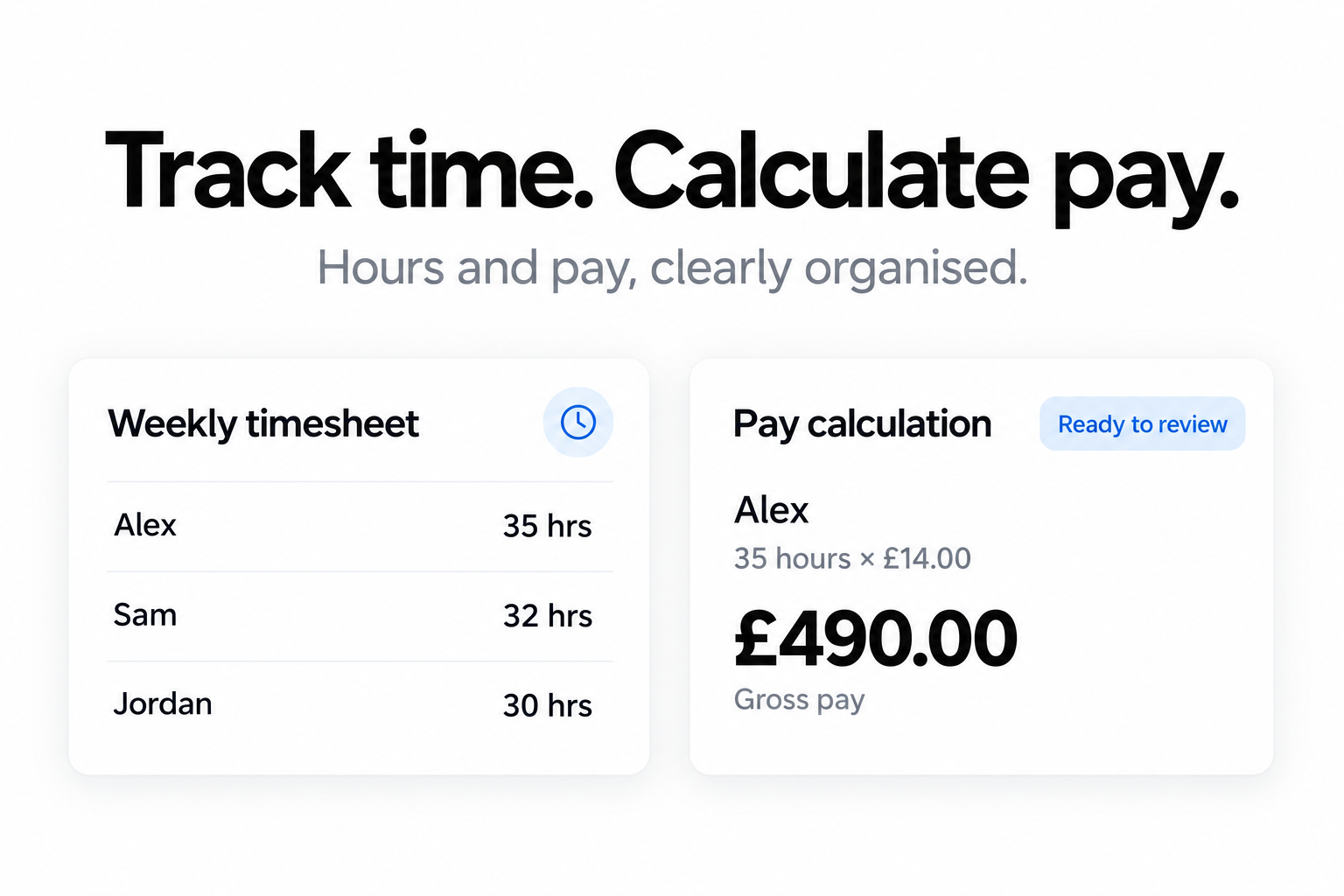
Record hours. Work out gross pay.
Staff hours go on weekly timesheets. Progressly works out gross pay from the minutes worked and each person’s rate. Approve a week to lock it. It does not file payroll or tax for you.
Find your industry